Claude for Chrome turns a chat window into a browser that can act: here is how I use it, in three concrete workflows.

Most people still treat AI assistants as a chat window: you type a question, read an answer, then copy it into whatever tool you actually work in. Claude in Chrome breaks that pattern. It’s a browser extension that lets Claude see the tab you have open, scroll it, click on it, and type into it — inside your own logged-in session, not a sandboxed copy of the page.
For growth and sales teams, the useful part isn’t the conversation. It’s the fact that Claude can now do something with what it reads, instead of just describing it back to you. Below are three examples I keep coming back to, picked because they map to work that repeats every week, not to one-off demos.
What the extension actually does
Claude in Chrome isn’t a separate bot crawling the web on your behalf. It operates inside your browser, with your cookies, your logins and your permissions already in place, so it sees exactly what you would see if you did the work yourself. Practically, that means it can:
- Read the content of the page you’re on, including tables and long text
- Click buttons, open menus and switch between tabs
- Fill in form fields and select options
- Pull together information scattered across several pages
The extension is also built to pause before anything that counts as sensitive — a purchase, a message sent to someone else, a permission change. You see a plan, you approve it, then it acts. That boundary matters more than the automation itself once you start using it daily, because the time you save on repetitive steps only counts if you can still trust the result.
Example 1 — Filling in long, repetitive forms
The clearest use case is also the least glamorous one: data entry. CRM records, lead qualification forms, onboarding questionnaires — the kind of form that takes fifteen minutes to fill because the information lives in three different tabs. Half of that time isn’t typing, it’s hunting for the right number in the right place.
I give Claude the source material — a spreadsheet row, a previous email thread, a short brief — and point it at the form. It reads both, maps the fields, and fills them in. I still review every field before submitting, but a fifteen-minute task becomes a two-minute check.
Example 2 — Comparing information across tabs
Competitive and pricing research usually means opening six tabs, taking notes by hand, and losing track of which number came from which source. I now open the tabs I care about and ask Claude to pull a specific set of facts — price tiers, feature limits, contract terms — into one table. I still open each source once myself to check it, but that is minutes, not an afternoon.
It doesn’t replace the judgment call at the end, but it removes the tedious part: reading six pricing pages, writing the same data points down six times, and catching the one site that quietly changed its terms since last quarter.
Example 3 — Summarizing and extracting from long pages
Long reports, documentation pages and analyst write-ups are where this saves me the most time. Instead of skimming a four-thousand-word page to find the three points relevant to a prospect conversation, I ask Claude to extract exactly those points, with the source page open next to the answer so I can check it in context before I use it anywhere external.
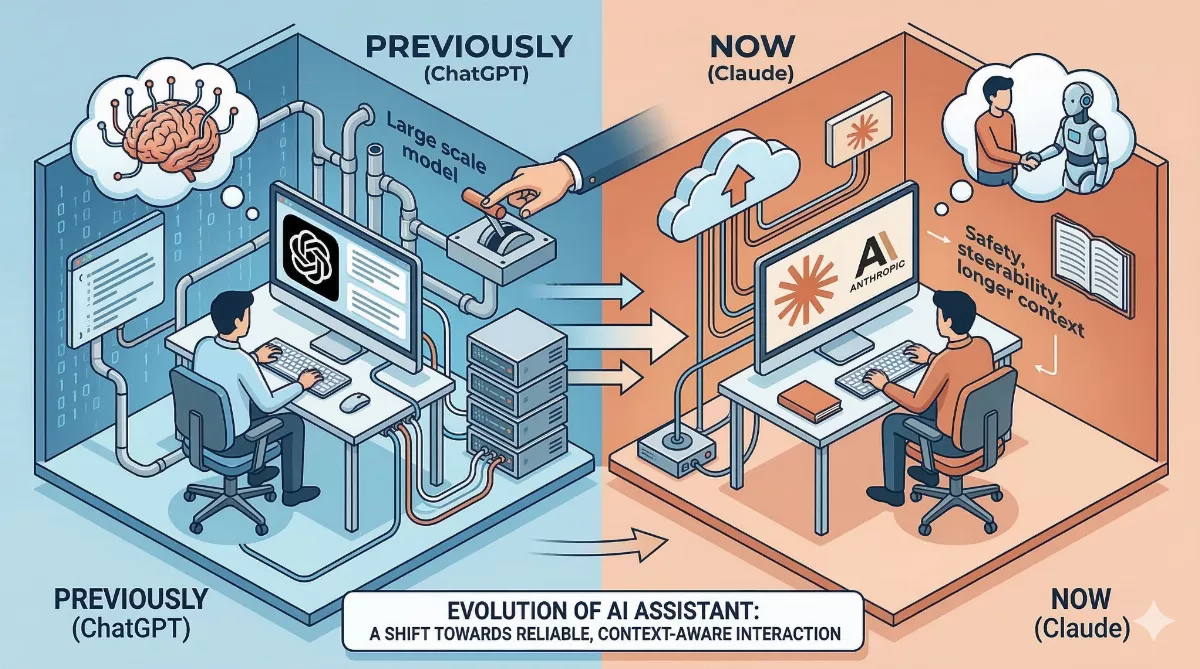
I have written before about why I finally left ChatGPT and why I should have done it sooner, and about five reasons I switched from ChatGPT to Claude — this extension is part of that same shift toward tools that do the work, not just describe it.
Where I would stay careful
None of this makes Claude infallible. It can misread a page, misjudge which field a label belongs to, or summarize away a nuance. I treat it like a sharp but new team member: useful by default, but I check the output before it touches a customer, a contract or a send button.
The extension itself is built around that caution — it shows its plan before acting and asks before anything irreversible. The discipline on my side is simply not skipping that check because the first ten times went fine.
If your team is still doing this kind of browser work by hand, it is worth mapping where the extra time each day actually goes.Want to apply this to your pipeline?